
How Do I Install Babylitics as an App on iPhone and Android?
On this page
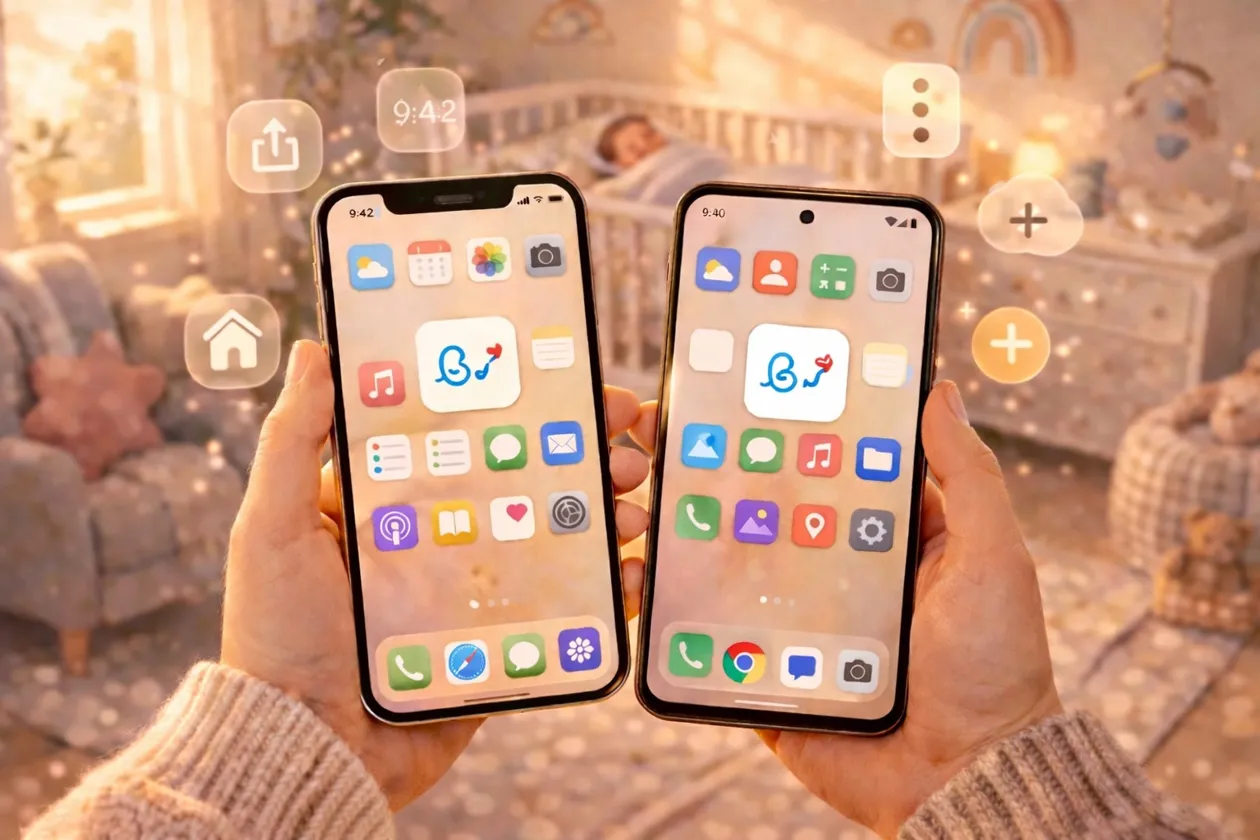
You can install Babylitics on your phone in under a minute. There's nothing to download from the App Store or Play Store — Babylitics is a Progressive Web App (PWA), so the browser installs it directly from the website. The installed app gets its own home screen icon, launches full-screen without a URL bar, and works even when you're briefly offline.
What Is a Progressive Web App?
A Progressive Web App is a website that behaves like a native mobile app once you install it from your browser. It lives on your home screen, opens without the browser's address bar, and can send push notifications — all from a standard web address.
Any site that ships a Web App Manifest and a registered service worker meets the W3C definition of an installable Progressive Web App — Babylitics ships both.
The big upside: no download, no update downloads, and the app is always on the latest version the moment you open it.
How Do I Install Babylitics on iPhone or iPad?
On iOS, installation happens through the browser's Share menu. On iOS 16.4 and later you can install from Safari, Chrome, Edge, Firefox, or Orion — they all surface the Add to Home Screen option. Older iOS versions only support Safari.
- Open your browser of choice and go to babylitics.io
- Sign in to your account
- Tap the Share button (the square with an arrow pointing up — at the bottom of Safari, or next to the URL bar in Chrome and Edge)
- Scroll down and tap Add to Home Screen
- Keep the name as "Babylitics" and tap Add in the top-right corner
That's it. You'll now see the Babylitics icon on your home screen. Tap it to launch the app full-screen — no browser toolbar, no URL bar, just the dashboard.
Starting with iOS 16.4 (March 2023), home-screen-installed web apps support Web Push notifications, and Add to Home Screen works from any supporting browser — Safari, Chrome, Edge, Firefox, and Orion — not just Safari.
If you're on iOS 16.3 or earlier, installation only works from Safari and push notifications aren't supported. Update to iOS 16.4 or later to unlock both.
How Do I Install Babylitics on Android?
On Android, Chrome (and most Chromium-based browsers) show an install prompt as soon as they detect an installable PWA. If you miss the prompt, you can always install from the browser menu.
- Open Chrome (or Edge, Samsung Internet, Brave) and go to babylitics.io
- Sign in to your account
- Tap the ⋮ menu in the top-right corner
- Tap Install app (or Add to Home Screen on older versions)
- Confirm by tapping Install
Chrome will also sometimes show a blue "Install Babylitics" banner at the bottom of the screen — tapping that works the same way.
When you install a PWA on Android, Chrome generates a WebAPK — a lightweight native Android package — so Babylitics appears in your app drawer, recent-apps switcher, and settings alongside Play Store apps.
Android gives installed PWAs push notifications out of the box, so you can approve notification prompts right after install if you want reminders for things like feeding intervals.
What's the Difference Between iOS and Android Install?
Both platforms end up with a real app icon on your home screen, but the exact user experience differs slightly.
| Feature | iOS (iPhone/iPad) | Android |
|---|---|---|
| Supported browsers | Safari always; Chrome, Edge, Firefox, Orion on iOS 16.4+ | Chrome, Edge, Samsung Internet, Brave, Firefox |
| Install UI | Share → Add to Home Screen | Install prompt or menu → Install app |
| Full-screen launch | Yes (from the home screen icon) | Yes (WebAPK container) |
| Push notifications | iOS 16.4+ only, after opting in | Supported on all modern Android versions |
| App drawer entry | Home screen only | Home screen + app drawer + settings |
| Offline cached screens | Yes | Yes |
| Auto-updates | Yes — next open = latest version | Yes — next open = latest version |
Do I Still Need a Babylitics Account?
Yes. Installing the app is just a shortcut — it doesn't sign you up. If you haven't registered yet, head to babylitics.io/register first, then install the home screen shortcut once you're signed in. The installed app remembers your session, so you won't need to log in again on that device.
How Do I Remove It If I Change My Mind?
iOS: Long-press the Babylitics icon → Remove App → Delete from Home Screen.
Android: Long-press the icon → drag to Uninstall, or go to Settings → Apps → Babylitics → Uninstall.
Uninstalling the shortcut won't delete your Babylitics data — everything stays safe on your account, and you can reinstall anytime.
Frequently Asked Questions
Create your Babylitics account, then install it on your phone in under a minute — no App Store, no credit card.